Update Firmware of your Air Quality Sensor
To install new firmware for your Air Quality Sensor, follow these steps:
- Connect your Air Quality Sensor via USB to your computer.
- Go to this website: https://espressif.github.io/esptool-js/ on a compatible browser -> Google Chrome or Microsoft Edge version 89 or later.
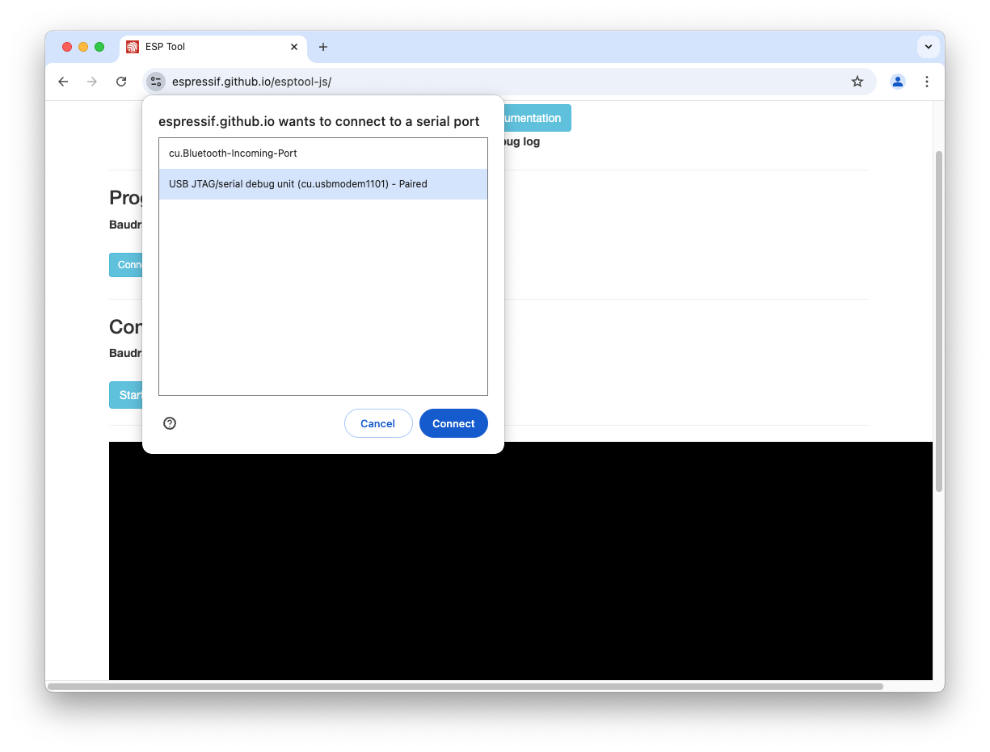
- Connect to your board by pressing the "Connect" button and choose the serial port associated with your Air Quality Sensor. The port name should be similar to "usbmodem####".
- Now you need to load 4 binary files.
- First, make sure you have downloaded the binaries from here (v1.0.1).
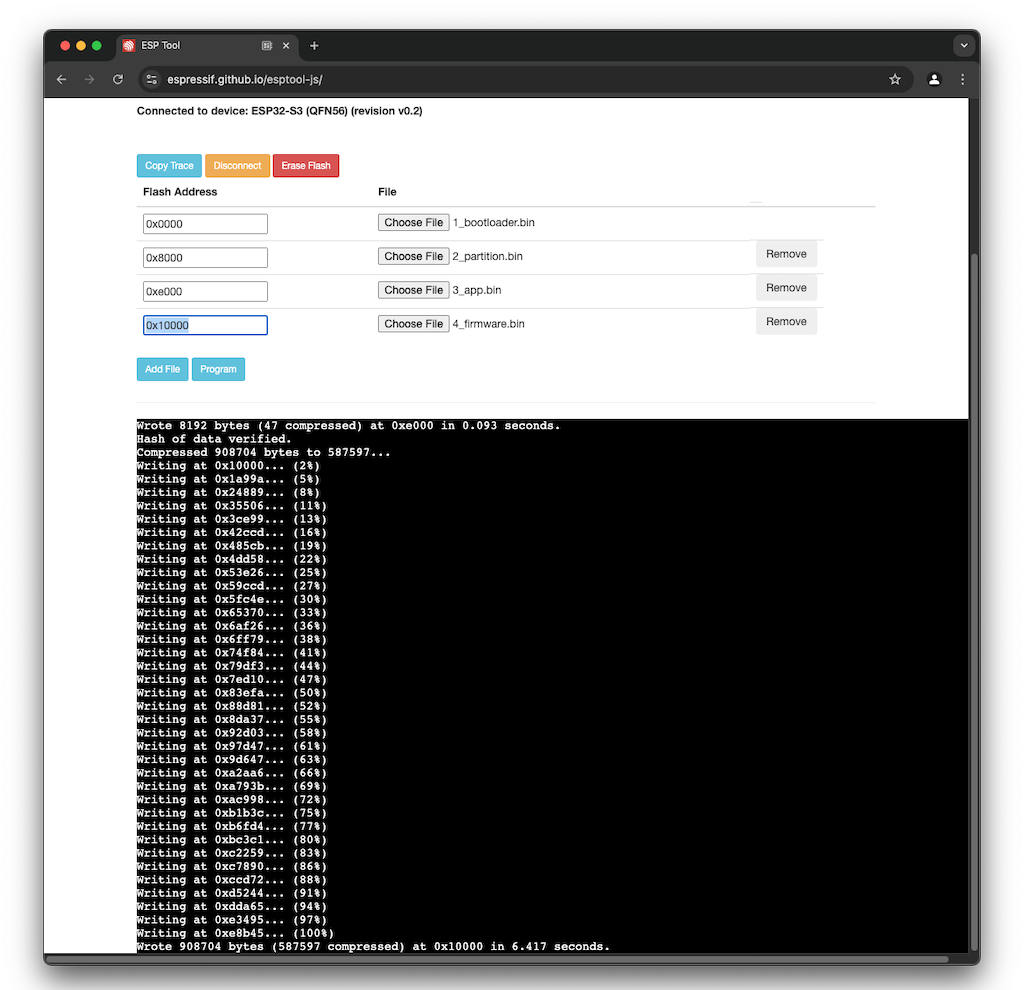
- Add the files to the interface using the "Add Files" button. Ensure you change the addresses for each file as they appear here below (make special attention to the first address - 0x0000):
Address File Name 0x0000 1_bootloader.bin 0x8000 2_partition.bin 0xe000 3_app.bin 0x10000 4_firmware.bin 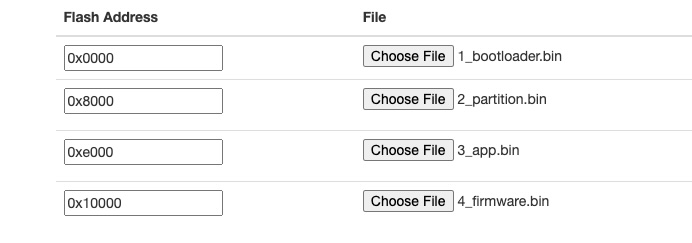
- Press the "Program" button and wait till the upload is complete.
After the upload, you can reset your board either by pressing the reset (RST) button on the back of your board or by reconnecting the USB cable.